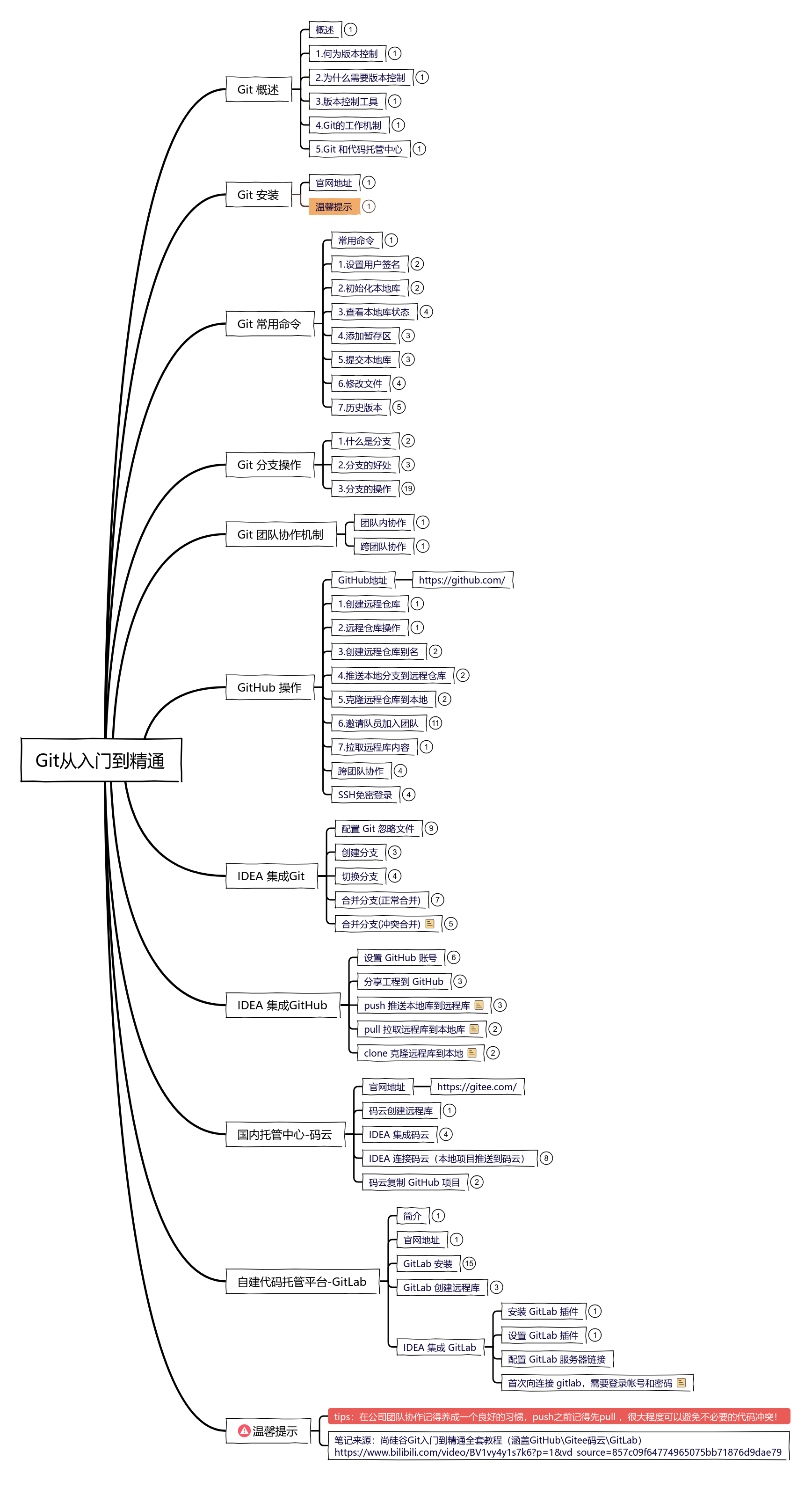
Git从入门到精通
2023-06-30 13:48:49 1 举报Git从入门到精通
Git
模板推荐
作者其他创作
大纲/内容
Git 概述<br>
概述<br>
Git 是一个免费的、开源的<b><font color="#e74f4c">分布式版本控制系统</font></b>,可以快速高效地处理从小型到大型的各种<br>项目。<br>Git 易于学习,占地面积小,性能极快。 它具有廉价的本地库,方便的暂存区域和多个工作<br>流分支等特性。其性能优于 Subversion、CVS、Perforce 和 ClearCase 等版本控制工具。
1.何为版本控制<br>
版本控制是一种记录文件内容变化,以便将来查阅特定版本修订情况的系统。<br>版本控制其实最重要的是可以记录文件修改历史记录,从而让用户能够查看历史版本,<br>方便版本切换。
2.为什么需要版本控制
个人开发过渡到团队协作。
3.版本控制工具<br>
集中式版本控制工具: CVS、<font color="#e74f4c"><b>SVN(Subversion)</b></font>、VSS<br>分布式版本控制工具: <font color="#e74f4c"><b>Git</b></font>、Mercurial、Bazaar、Darcs<br>
4.Git的工作机制<br>
5.Git 和代码托管中心
代码托管中心是基于网络服务器的远程代码仓库,一般我们简单称为远程库。<br>局域网:GitLab;<br>互联网:GitHub(外网),Gitee 码云(国内网站)<br>
Git 安装
官网地址
https://git-scm.com/
温馨提示
<font color="#e74f4c">根据自己电脑系统下载对应的安装包,安装路径最好不要有中文和空格。</font>
Git 常用命令<br>
常用命令
1.设置用户签名
基本语法<br>git config --global user.name 用户名<br>git config --global user.email 邮箱<br>
签名的作用是区分不同操作者身份。<br>用户的签名信息在每一个版本的提交信息中能够看到,以此确认本次提交是谁做的。<br><b><font color="#e74f4c">Git 首次安装必须设置一下用户签名,否则无法提交代码。</font></b><br>
2.初始化本地库
基本语法<br>git init<br>
案例实操<br>Layne@LAPTOP-Layne MINGW64 /d/Git-Space/SH0720<br>$ <b><font color="#e74f4c">git init</font></b><br>Initialized empty Git repository in D:/Git-Space/SH0720/.git/<br>Layne@LAPTOP-Layne MINGW64 /d/Git-Space/SH0720 (master)<br>$ ll -a<br>total 4<br>drwxr-xr-x 1 Layne 197609 0 11 月 25 14:07 ./<br>drwxr-xr-x 1 Layne 197609 0 11 月 25 14:07 ../<br>drwxr-xr-x 1 Layne 197609 0 11 月 25 14:07 .git/ (.git 初始化的效<br>果,生成 git)<br>
3.查看本地库状态
基本语法<br>git status
案例实操 首次查看(工作区没有任何文件)<br>Layne@LAPTOP-Layne MINGW64 /d/Git-Space/SH0720 (master)<br>$ <b><font color="#e74f4c">git status</font></b><br>On branch master<br>No commits yet<br>nothing to commit (create/copy files and use "git add" to track)<br>
新增文件(hello.txt)<br>Layne@LAPTOP-Layne MINGW64 /d/Git-Space/SH0720 (master)<br>$ <font color="#e74f4c"><b>vim hello.txt</b></font><br>hello git! hello atguigu!<br>hello git! hello atguigu!<br>hello git! hello atguigu!<br>hello git! hello atguigu!<br>hello git! hello atguigu!<br>hello git! hello atguigu!<br>hello git! hello atguigu!<br>hello git! hello atguigu!<br>hello git! hello atguigu!<br>hello git! hello atguigu!<br>hello git! hello atguigu!<br>hello git! hello atguigu!<br>hello git! hello atguigu!<br>hello git! hello atguigu!<br>hello git! hello atguigu!<br>hello git! hello atguigu!
再次查看(检测到未追踪的文件)<br>Layne@LAPTOP-Layne MINGW64 /d/Git-Space/SH0720 (master)<br>$ <b><font color="#e74f4c">git status</font></b><br>On branch master<br>No commits yet<br>Untracked files:<br> (use "git add <file>..." to include in what will be committed)<br> hello.txt<br>nothing added to commit but untracked files present (use "git add" <br>to track)<br>
4.添加暂存区<br>
将工作区的文件添加到暂存区<br>基本语法<br>git add 文件名<br>
案例实操<br>Layne@LAPTOP-Layne MINGW64 /d/Git-Space/SH0720 (master)<br>$ <b><font color="#e74f4c">git add hello.txt</font></b><br>warning: LF will be replaced by CRLF in hello.txt.<br>The file will have its original line endings in your working <br>directory.<br>
查看状态(检测到暂存区有新文件)<br>Layne@LAPTOP-Layne MINGW64 /d/Git-Space/SH0720 (master)<br>$ <b><font color="#e74f4c">git status</font></b><br>On branch master<br>No commits yet<br>Changes to be committed:<br> (use "git rm --cached <file>..." to unstage)<br> new file: hello.txt<br>
5.提交本地库
将暂存区的文件提交到本地库<br>基本语法<br>git commit -m "日志信息" 文件名
案例实操<br>Layne@LAPTOP-Layne MINGW64 /d/Git-Space/SH0720 (master)<br>$ <b><font color="#e74f4c">git commit -m "my first commit" hello.txt</font></b><br>warning: LF will be replaced by CRLF in hello.txt.<br>The file will have its original line endings in your working <br>directory.<br>[master (root-commit) 86366fa] my first commit<br>1 file changed, 16 insertions(+)<br>create mode 100644 hello.txt<br>
查看状态(没有文件需要提交)<br>Layne@LAPTOP-Layne MINGW64 /d/Git-Space/SH0720 (master)<br>$ <b><font color="#e74f4c">git status</font></b><br>On branch master<br>nothing to commit, working tree clean<br>
6.修改文件
Layne@LAPTOP-Layne MINGW64 /d/Git-Space/SH0720 (master)<br>$ <b><font color="#e74f4c">vim hello.txt</font></b><br>hello git! hello atguigu! 2222222222222<br>hello git! hello atguigu!<br>hello git! hello atguigu!<br>hello git! hello atguigu!<br>hello git! hello atguigu!<br>hello git! hello atguigu!<br>hello git! hello atguigu!<br>hello git! hello atguigu!<br>hello git! hello atguigu!<br>hello git! hello atguigu!<br>hello git! hello atguigu!<br>hello git! hello atguigu!<br>hello git! hello atguigu!<br>hello git! hello atguigu!<br>hello git! hello atguigu!<br>hello git! hello atguigu!
查看状态(检测到工作区有文件被修改)<br>Layne@LAPTOP-Layne MINGW64 /d/Git-Space/SH0720 (master)<br>$ <b><font color="#e74f4c">git status</font></b><br>On branch master<br>Changes not staged for commit:<br> (use "git add <file>..." to update what will be committed)<br> (use "git checkout -- <file>..." to discard changes in working <br>directory)<br> modified: hello.txt<br>no changes added to commit (use "git add" and/or "git commit -a")<br>
将修改的文件再次添加暂存区<br>Layne@LAPTOP-Layne MINGW64 /d/Git-Space/SH0720 (master)<br>$ <b><font color="#e74f4c">git add hello.txt</font></b><br>warning: LF will be replaced by CRLF in hello.txt.<br>The file will have its original line endings in your working <br>directory.<br>
查看状态(工作区的修改添加到了暂存区)<br>Layne@LAPTOP-Layne MINGW64 /d/Git-Space/SH0720 (master)<br>$ <b><font color="#e74f4c">git status</font></b><br>On branch master<br>Changes to be committed:<br> (use "git reset HEAD <file>..." to unstage)<br> modified: hello.txt<br>
7.历史版本
查看历史版本<br>基本语法<br>git reflog 查看版本信息<br>git log 查看版本详细信息<br>
案例实操<br>Layne@LAPTOP-Layne MINGW64 /d/Git-Space/SH0720 (master)<br>$ <b><font color="#e74f4c">git reflog</font></b><br>087a1a7 (HEAD -> master) HEAD@{0}: commit: my third commit<br>ca8ded6 HEAD@{1}: commit: my second commit<br>86366fa HEAD@{2}: commit (initial): my first commit<br>
版本穿梭<br>基本语法<br>git reset --hard 版本号<br>
案例实操<br>--首先查看当前的历史记录,可以看到当前是在 087a1a7 这个版本<br>Layne@LAPTOP-Layne MINGW64 /d/Git-Space/SH0720 (master)<br>$ <b><font color="#e74f4c">git reflog</font></b><br>087a1a7 (HEAD -> master) HEAD@{0}: commit: my third commit<br>ca8ded6 HEAD@{1}: commit: my second commit<br>86366fa HEAD@{2}: commit (initial): my first commit<br><br>--切换到 86366fa 版本,也就是我们第一次提交的版本<br>Layne@LAPTOP-Layne MINGW64 /d/Git-Space/SH0720 (master)<br>$ <b><font color="#e74f4c">git reset --hard 86366fa</font></b><br>HEAD is now at 86366fa my first commit<br><br>--切换完毕之后再查看历史记录,当前成功切换到了 86366fa 版本<br>Layne@LAPTOP-Layne MINGW64 /d/Git-Space/SH0720 (master)<br>$<b><font color="#e74f4c"> git reflog</font></b><br>86366fa (HEAD -> master) HEAD@{0}: reset: moving to 86366fa<br>087a1a7 HEAD@{1}: commit: my third commit<br>ca8ded6 HEAD@{2}: commit: my second commit<br>86366fa (HEAD -> master) HEAD@{3}: commit (initial): my first commit<br><br>--然后查看文件 hello.txt,发现文件内容已经变化<br>$ <b><font color="#e74f4c">cat hello.txt</font></b><br>hello git! hello atguigu!<br>hello git! hello atguigu!<br>hello git! hello atguigu!<br>hello git! hello atguigu!<br>hello git! hello atguigu!<br>hello git! hello atguigu!<br>hello git! hello atguigu!<br>
<font color="#e74f4c">Git 切换版本,底层其实是移动的 HEAD 指针</font>
Git 分支操作
1.什么是分支
在版本控制过程中,同时推进多个任务,为每个任务,我们就可以创建每个任务的单独<br>分支。使用分支意味着程序员可以把自己的工作从开发主线上分离开来,开发自己分支的时<br>候,不会影响主线分支的运行。对于初学者而言,分支可以简单理解为副本,一个分支就是<br>一个单独的副本。(分支底层其实也是指针的引用)
2.分支的好处
同时并行推进多个功能开发,提高开发效率。<br>各个分支在开发过程中,如果某一个分支开发失败,不会对其他分支有任何影响。<br>失败的分支删除重新开始即可。<br>
分支的操作
git branch 分支名 #创建分支<br>git branch -v #查看分支<br>git checkout 分支名 #切换分支<br>git merge 分支名 #把指定的分支合并到当前分支上
3.分支的操作
1.查看分支
基本语法<br>git branch -v
案例实操<br>Layne@LAPTOP-Layne MINGW64 /d/Git-Space/SH0720 (master)<br>$ <b><font color="#e74f4c">git branch -v</font></b><br>* master 087a1a7 my third commit (*代表当前所在的分区)<br>
2.创建分支
基本语法<br>git branch 分支名
案例实操<br>Layne@LAPTOP-Layne MINGW64 /d/Git-Space/SH0720 (master)<br>$ <b><font color="#e74f4c">git branch hot-fix</font></b><br>Layne@LAPTOP-Layne MINGW64 /d/Git-Space/SH0720 (master)<br>$ <b><font color="#e74f4c">git branch -v</font></b><br><font color="#ed9745">hot-fix 087a1a7 my third commit (刚创建的新的分支,并将主分支 master<br>的内容复制了一份)</font><br>* master 087a1a7 my third commit<br>
3.修改分支
--在 maste 分支上做修改<br>Layne@LAPTOP-Layne MINGW64 /d/Git-Space/SH0720 (master)<br>$ vim hello.txt<br><br>--添加暂存区<br>Layne@LAPTOP-Layne MINGW64 /d/Git-Space/SH0720 (master)<br>$ <b><font color="#e74f4c">git add hello.txt</font></b><br><br>--提交本地库<br>Layne@LAPTOP-Layne MINGW64 /d/Git-Space/SH0720 (master)<br>$ <b><font color="#e74f4c">git commit -m "my forth commit" hello.txt</font></b><br>[master f363b4c] my forth commit<br>1 file changed, 1 insertion(+), 1 deletion(-)<br><br>--查看分支<br>Layne@LAPTOP-Layne MINGW64 /d/Git-Space/SH0720 (master)<br>$ <b><font color="#e74f4c">git branch -v</font></b><br> hot-fix 087a1a7 my third commit (hot-fix 分支并未做任何改变)<br>* master f363b4c my forth commit (当前 master 分支已更新为最新一次提交<br>的版本)<br><br>--查看 master 分支上的文件内容<br>Layne@LAPTOP-Layne MINGW64 /d/Git-Space/SH0720 (master)<br>$ <b><font color="#e74f4c">cat hello.txt</font></b><br>hello git! hello atguigu! 2222222222222<br>hello git! hello atguigu! 3333333333333<br>hello git! hello atguigu!<br>hello git! hello atguigu!<br>hello git! hello atguigu!<br>hello git! hello atguigu!<br>hello git! hello atguigu!<br>hello git! hello atguigu!<br>hello git! hello atguigu!<br>hello git! hello atguigu!<br>hello git! hello atguigu!<br>hello git! hello atguigu!<br>hello git! hello atguigu!<br>hello git! hello atguigu!<br>hello git! hello atguigu! master test<br>hello git! hello atguigu!<br>
4.切换分支
基本语法<br>git checkout 分支名
案例实操<br>Layne@LAPTOP-Layne MINGW64 /d/Git-Space/SH0720 <b><font color="#e74f4c">(master)</font></b><br>$ <b><font color="#e74f4c">git checkout hot-fix</font></b><br>Switched to branch 'hot-fix'<br><br>--发现当先分支已由 master 改为 hot-fix<br>Layne@LAPTOP-Layne MINGW64 /d/Git-Space/SH0720 <b><font color="#e74f4c">(hot-fix)</font></b><br>$<br><br>--查看 hot-fix 分支上的文件内容发现与 master 分支上的内容不同<br>Layne@LAPTOP-Layne MINGW64 /d/Git-Space/SH0720<b><font color="#e74f4c"> (hot-fix)</font></b><br>$ <b><font color="#e74f4c">cat hello.txt</font></b><br>hello git! hello atguigu! 2222222222222<br>hello git! hello atguigu! 3333333333333<br>hello git! hello atguigu!<br>hello git! hello atguigu!<br>hello git! hello atguigu!<br>hello git! hello atguigu!<br>hello git! hello atguigu!<br>hello git! hello atguigu!<br>hello git! hello atguigu!<br>hello git! hello atguigu!<br>hello git! hello atguigu!<br>hello git! hello atguigu!<br>hello git! hello atguigu!<br>hello git! hello atguigu!<br>hello git! hello atguigu!<br>hello git! hello atguigu!<br><br>--在 hot-fix 分支上做修改<br>Layne@LAPTOP-Layne MINGW64 /d/Git-Space/SH0720<b><font color="#e74f4c"> (hot-fix)</font></b><br>$ <b><font color="#e74f4c">cat hello.txt</font></b><br>hello git! hello atguigu! 2222222222222<br>hello git! hello atguigu! 3333333333333<br>hello git! hello atguigu!<br>hello git! hello atguigu!<br>hello git! hello atguigu!<br>hello git! hello atguigu!<br>hello git! hello atguigu!<br>hello git! hello atguigu!<br>hello git! hello atguigu!<br>hello git! hello atguigu!<br>hello git! hello atguigu!<br>hello git! hello atguigu!<br>hello git! hello atguigu!<br>hello git! hello atguigu!<br>hello git! hello atguigu!<br>hello git! hello atguigu! hot-fix test<br><br>--添加暂存区<br>Layne@LAPTOP-Layne MINGW64 /d/Git-Space/SH0720 <b><font color="#e74f4c">(hot-fix)</font></b><br>$<b><font color="#e74f4c"> git add hello.txt</font></b><br><br>--提交本地库<br>Layne@LAPTOP-Layne MINGW64 /d/Git-Space/SH0720<b><font color="#e74f4c"> (hot-fix)</font></b><br>$<b><font color="#e74f4c"> git commit -m "hot-fix commit" hello.txt</font></b><br>
5.合并分支
基本语法<br>git merge 分支名
案例实操 在 master 分支上合并 hot-fix 分支 演示分支合并冲突<br>Layne@LAPTOP-Layne MINGW64 /d/Git-Space/SH0720<font color="#e74f4c"> (master)</font><br>$ <font color="#e74f4c"><b>git merge hot-fix</b></font><br>Auto-merging hello.txt<br>CONFLICT (content): Merge conflict in hello.txt<br>Automatic merge failed; fix conflicts and then commit the result.<br>
$ cat hello.txt<br>hello git! hello atguigu! 2222222222222<br>hello git! hello atguigu! 3333333333333<br>hello git! hello atguigu!<br>hello git! hello atguigu!<br>hello git! hello atguigu!<br>hello git! hello atguigu!<br>hello git! hello atguigu!<br>hello git! hello atguigu!<br>hello git! hello atguigu!<br>hello git! hello atguigu!<br>hello git! hello atguigu!<br>hello git! hello atguigu!<br>hello git! hello atguigu!<br>hello git! hello atguigu!<br><<<<<<< HEAD<br>hello git! hello atguigu! master test<br>hello git! hello atguigu!<br>=======<br>hello git! hello atguigu!<br>hello git! hello atguigu! hot-fix test<br>>>>>>>> hot-fix
<b><font color="#e74f4c">解决冲突</font></b><br>编辑有冲突的文件,删除特殊符号,决定要使用的内容<br>特殊符号:<<<<<<< HEAD 当前分支的代码 ======= 合并过来的代码 >>>>>>> hot-fix<br>
hello git! hello atguigu! 2222222222222<br>hello git! hello atguigu! 3333333333333<br>hello git! hello atguigu!<br>hello git! hello atguigu!<br>hello git! hello atguigu!<br>hello git! hello atguigu!<br>hello git! hello atguigu!<br>hello git! hello atguigu!<br>hello git! hello atguigu!<br>hello git! hello atguigu!<br>hello git! hello atguigu!<br>hello git! hello atguigu!<br>hello git! hello atguigu!<br>hello git! hello atguigu!<br>hello git! hello atguigu! master test<br>hello git! hello atguigu! hot-fix test<br>
Layne@LAPTOP-Layne MINGW64 /d/Git-Space/SH0720 <font color="#e74f4c">(master|MERGING)</font><br>$ git add hello.txt
Layne@LAPTOP-Layne MINGW64 /d/Git-Space/SH0720 <font color="#e74f4c">(master|MERGING)</font><br>$ git commit -m "merge hot-fix" <font color="#e74f4c">#(注意:此时使用 git commit 命令时不能带文件名</font><br>[master 69ff88d] merge hot-fix<br>--<b><font color="#e74f4c">发现后面 MERGING 消失,变为正常</font></b><br>Layne@LAPTOP-Layne MINGW64 /d/Git-Space/SH0720<font color="#e74f4c"> (master)</font>
Git 团队协作机制
团队内协作
跨团队协作
GitHub 操作<br>
GitHub地址<br>
https://github.com/<br>
1.创建远程仓库
登录自己的账号,点击 右上角 + 号,选择 new repository按钮,输入相关仓库名即可。<br>
2.远程仓库操作
3.创建远程仓库别名
基本语法<br>git remote -v 查看当前所有远程地址别名<br>git remote add 别名 远程地址
案例实操<br>Layne@LAPTOP-Layne MINGW64 /d/Git-Space/SH0720 <font color="#7bd144">(master)</font><br>$ <b><font color="#e74f4c">git remote -v</font></b><br>Layne@LAPTOP-Layne MINGW64 /d/Git-Space/SH0720<font color="#7bd144"> (master)</font><br>$ <font color="#e74f4c"><b>git remote add ori https://github.com/atguiguyueyue/git-shTest.git</b></font><br><br>Layne@LAPTOP-Layne MINGW64 /d/Git-Space/SH0720 <font color="#7bd144">(master)</font><br>$ <font color="#e74f4c"><b>git remote -v</b></font><br>ori https://github.com/atguiguyueyue/git-shTest.git (fetch)<br>ori https://github.com/atguiguyueyue/git-shTest.git (push)<br>
4.推送本地分支到远程仓库
基本语法<br>git push 别名 分支
案例实操<br>Layne@LAPTOP-Layne MINGW64 /d/Git-Space/SH0720<font color="#7bd144"> (master)</font><br>$<b><font color="#e74f4c"> git push ori master</font></b><br>Logon failed, use ctrl+c to cancel basic credential prompt.<br>Username for 'https://github.com': atguiguyueyue<br>Counting objects: 3, done.<br>Delta compression using up to 12 threads.<br>Compressing objects: 100% (2/2), done.<br>Writing objects: 100% (3/3), 276 bytes | 276.00 KiB/s, done.<br>Total 3 (delta 0), reused 0 (delta 0)<br>To https://github.com/atguiguyueyue/git-shTest.git<br>* [new branch] master -> master<br>
5.克隆远程仓库到本地
基本语法<br>git clone 远程地址
案例实操<br>Layne@LAPTOP-Layne MINGW64 /d/Git-Space/pro-linghuchong<br>$ <b><font color="#e74f4c">git clone https://github.com/atguiguyueyue/git-shTest.git</font></b><br>Cloning into 'git-shTest'...<br>remote: Enumerating objects: 3, done.<br>remote: Counting objects: 100% (3/3), done.<br>remote: Compressing objects: 100% (2/2), done.<br>remote: Total 3 (delta 0), reused 3 (delta 0), pack-reused 0<br>Unpacking objects: 100% (3/3), done<br>
6.邀请队员加入团队
选择邀请合作者。(在仓库设置里操作)
填入想要合作的人(username or fullname or email)
复制网址发送给你目标合作者
<br>
目标合作者接收到网址,用浏览器打开它,点击接受邀请
<br>
接受邀请成功之后,可以在目标合作者Github账号上看到将来共同开发远程仓库
<br>
目标合作者可以修改内容并 push 到远程仓库<br>
7.拉取远程库内容<br>
基本语法<br>git pull 远程库地址别名 远程分支名
跨团队协作
找到对应的项目,点击项目右上角的 fork <br>
然后进行内容的修改,提交<br>
进行Pull request 请求进行代码合并
项目所有者确认代码没问题则进行Merge pull reque 合并代码<br>
SSH免密登录
我们可以看到远程仓库中还有一个 SSH 的地址,因此我们也可以使用 SSH 进行访问<br>
先到用户的主页目录,删除.ssh文件夹(如果没有.ssh文件夹,忽略此步)<br>abc@DESKTOP-R85C9HV MINGW64 ~<br>$ cd ~<br><br>abc@DESKTOP-R85C9HV MINGW64 ~<br>$ pwd<br>/c/Users/abc<br><br>abc@DESKTOP-R85C9HV MINGW64 ~<br>$ ls -a .ssh<br>./ ../ id_rsa id_rsa.pub<br><br>abc@DESKTOP-R85C9HV MINGW64 ~<br>$ rm -rf .ssh<br><br>abc@DESKTOP-R85C9HV MINGW64 ~<br>$ ls -a .ssh<br>ls: cannot access '.ssh': No such file or directory<br><br>
运行命令ssh-keygen生成.ssh目录<br>abc@DESKTOP-R85C9HV MINGW64 ~/Desktop/HelloGit-clone/HelloGit (master)<br>$ <b><font color="#e74f4c">ssh-keygen -t rsa -C abc@123.com</font></b><br>Generating public/private rsa key pair.<br>Enter file in which to save the key (/c/Users/abc/.ssh/id_rsa):<br>Created directory '/c/Users/abc/.ssh'.<br>Enter passphrase (empty for no passphrase):<br>Enter same passphrase again:<br>Your identification has been saved in /c/Users/abc/.ssh/id_rsa<br>Your public key has been saved in /c/Users/abc/.ssh/id_rsa.pub<br>The key fingerprint is:<br>SHA256:aeNMB/hP2yiH/Dka2jK9BJciSgA8yKKLlKXX8oei7J0 jallenkwong@163.com<br>The key's randomart image is:<br>+---[RSA 3072]----+<br>|= |<br>|++ . . |<br>|+ = . . . |<br>|.= o . . + |<br>|o.o + + S o |<br>|o. o + @ * + |<br>|. o . ..O = . |<br>| o. . o+.=.. |<br>|.. E .o+oo. |<br>+----[SHA256]-----+<br><br>abc@DESKTOP-R85C9HV MINGW64 ~<br>$ ls -a .ssh<br>./ ../ id_rsa id_rsa.pub<br><br># 生成公钥<br>abc@DESKTOP-R85C9HV MINGW64 ~<br>$ cat .ssh/id_rsa.pub<br>ssh-rsa AAAAB3NzaC1yc2EAAAADAQABAAABgQChXy8I20br9nu4GCNeZSDkozfHvlRFpXiImYnVlHVvyvFgjct1/zMeJgot1J6+yArSJbA4TMlS9nG8owCE6C9yqhPceDlKtQbARKS2pW7IyP5OhIbcqVmWmvvd+IMmsWrWgK9S6jqp0xSqv3Z3mlcHWOAK18oOe6wF6b3SyGgCP/EcwwUGX4NG7jukhK+In9joSuAxchEg/Ba2/LVjqtfBn3hXZx/SEt+rJ0UVPIT/eEe32HflrzokNcO7l0IgyLntv5QEAsSC2hiGxrM6vF5tQpb12MVZnt1/01ytP0ruQn2TVTI96vsOAa3Cj98dAH2Z0JdqZUSVBw+o3AqXP5oeF1JWkDHZzHQjLgu741wnUZn+vVXFBu1xQyApbvH7y7cNbq8PaxU+SyZbVXbq3RwTywJsyFQvsIOM5l0tG7jUD0QAd6dP3rcNODjFTaafJaBsR9aMwvKQd/d7H+BdwFPYOFp8HB2JAzhRpvlS4Av9MCIe0474wZ0T2QOJmcs7mns= abc@123.com<br><br>
然后,将生成的公钥添加至Github账号SSH设置<br>登录github -- 点击头像 -- Settings -- SSH and GPG keys -- New SSH key <br>
IDEA 集成Git<br>
配置 Git 忽略文件
1.为什么要忽略<br>
与项目的实际功能无关,不参与服务器上部署运行。把它们忽略掉能够屏蔽 IDE 工具之<br>间的差异。<br>
2.怎么忽略
方式一<br>创建忽略规则文件 xxxx.ignore(前缀名随便起,建议是 git.ignore)<br>这个文件的存放位置原则上在哪里都可以,为了便于让~/.gitconfig 文件引用,建议也放在用<br>户家目录下<br>
<b>git.ignore 文件模版内容如下:<br></b># Compiled class file<br>*.class<br># Log file<br>*.log<br># BlueJ files<br>*.ctxt<br># Mobile Tools for Java (J2ME)<br>.mtj.tmp/<br># Package Files #<br>*.jar<br>*.war<br>*.nar<br>*.ear<br>*.zip<br>*.tar.gz<br>*.rar<br># virtual machine crash logs, see <br>http://www.java.com/en/download/help/error_hotspot.xml<br>hs_err_pid*<br>.classpath<br>.project<br>.settings<br>target<br>.idea<br>*.iml<br>
在.gitconfig 文件中引用忽略配置文件(此文件在 Windows 的家目录中)<br>[user]<br>name = Layne<br>email = Layne@atguigu.com<br>[core]<br>excludesfile = C:/Users/asus/git.ignore<br><b><font color="#e74f4c">注意:这里要使用“正斜线(/)”,不要使用“反斜线(\)”</font></b><br>
方式二<br>idea 中安装ignore插件进行文件忽略配置
配置 Git 程序
创建分支
右键点击HelloGit,Git -> Repository -> Branches,或者点击IDEA的右下角,如图红圈所示部位
<br>
切换分支
跟创建分支步骤相似,如点击IDEA的右下角(它显示项目正处在那条分支),如图红圈所示部位,选择你想要切换的分支,然后checkout
或者在log窗口,右键点击分支,选择checkout
<br>
合并分支(正常合并)
先在hot-fix分支修改HelloGit类,并将其提交<br>
然后切换到master分支,右下角的hot-fix会变为master
然后,点击IDEA 窗口的右下角的master,将 hot-fix 分支合并到当前 master 分支。选择hot-fix->Merge into Current
<br>
如果代码没有冲突, 分支直接合并成功,分支合并成功以后,代码自动提交,无需手动<br>提交本地库。
合并分支(冲突合并)
分别在master,hot-fix分支修改HelloGit类同一行,并提交,故意制作冲突
切换到master分支,将hot-fix的合并到master分支
冲突产生,需要人工解决
手动合并完代码以后,点击右下角的 Apply 按钮
IDEA 集成GitHub<br>
设置 GitHub 账号
<br>
如果出现 401 等情况连接不上的,是因为网络原因,可以使用以下方式连接<br><br>
然后去 GitHub 账户上设置 token<br><br>
分享工程到 GitHub
<br>
push 推送本地库到远程库
右键点击项目,可以将当前分支的内容 push 到 GitHub 的远程仓库中
<br>
一般情况 不需要做这个操作!!!
pull 拉取远程库到本地库
右键点击项目,可以将远程仓库的内容 pull 到本地仓库
clone 克隆远程库到本地
<br>
国内托管中心-码云<br>
官网地址<br>
https://gitee.com/
码云创建远程库
这个太简单了,界面都是中文和github基本一样不多赘述
IDEA 集成码云
在插件中 搜索 gitee 安装即可,记得安装成功后重启 IDEA
重启成功后 在setting 中 选择 version control就可以看见 Gitee 了<br>
接着就是添加 对应的账号信息
IDEA 连接码云(本地项目推送到码云)
Idea 连接码云和连接 GitHub 几乎一样,首先在 Idea 里面创建一个工程,初始化 git 工<br>程,然后将代码添加到暂存区,提交到本地库,这些步骤上面已经讲过,此处不再赘述
给远程库链接定义个 name,然后再 URL 里面填入码云远程库的 HTTPS 链接即可
<br>
然后选择定义好的远程链接,点击 Push 即可
只要码云远程库链接定义好以后,对码云远程库进行 pull 和 clone 的操作和 Github 一<br>致,不再重复赘述<br>
码云复制 GitHub 项目
码云提供了直接复制 GitHub 项目的功能,方便我们做项目的迁移和下载
自建代码托管平台-GitLab
简介
GitLab 是由 GitLabInc.开发,使用 MIT 许可证的基于网络的 Git 仓库管理工具,且具有<br>wiki 和 issue 跟踪功能。使用 Git 作为代码管理工具,并在此基础上搭建起来的 web 服务。<br>GitLab 由乌克兰程序员 DmitriyZaporozhets 和 ValerySizov 开发,它使用 Ruby 语言写<br>成。后来,一些部分用 Go 语言重写。截止 2018 年 5 月,该公司约有 290 名团队成员,以<br>及 2000 多名开源贡献者。GitLab 被 IBM,Sony,JülichResearchCenter,NASA,Alibaba,<br>Invincea,O’ReillyMedia,Leibniz-Rechenzentrum(LRZ),CERN,SpaceX 等组织使用。
官网地址
https://about.gitlab.com/
GitLab 安装
服务器准备
准备一个系统为 CentOS7 以上版本的服务器,要求内存 4G,磁盘 50G。<br>关闭防火墙,并且配置好主机名和 IP,保证服务器可以上网。<br>此教程使用虚拟机:主机名:gitlab-server IP 地址:192.168.6.200
安装包准备
下载地址<br>https://packages.gitlab.com/gitlab/gitlabce/packages/el/7/gitlab-ce-13.10.2-ce.0.el7.x86_64.rpm<br>
编写安装脚本
[root@gitlab-server module]# vim gitlab-install.sh
<b><font color="#e74f4c">sudo rpm -ivh /opt/module/gitlab-ce-13.10.2-ce.0.el7.x86_64.rpm</font></b><br>sudo yum install -y curl policycoreutils-python openssh-server cronie<br>sudo lokkit -s http -s ssh<br>sudo yum install -y postfix<br>sudo service postfix start<br>sudo chkconfig postfix on<br>curl https://packages.gitlab.com/install/repositories/gitlab/gitlabce/script.rpm.sh | sudo bash<br>sudo EXTERNAL_URL="http://gitlab.example.com" yum -y install gitlabce
chmod +x gitlab-install.sh
初始化 GitLab 服务
gitlab-ctl reconfigure
启动 GitLab 服务
gitlab-ctl start
浏览器器访问 GitLab
192.168.0.200
登录修改密码
GitLab 创建远程库
IDEA 集成 GitLab
安装 GitLab 插件
设置 GitLab 插件
配置 GitLab 服务器链接<br>
首次向连接 gitlab,需要登录帐号和密码
温馨提示
tips:在公司团队协作记得养成一个良好的习惯,push之前记得先pull ,很大程度可以避免不必要的代码冲突!
笔记来源:尚硅谷Git入门到精通全套教程(涵盖GitHub\Gitee码云\GitLab)<br>https://www.bilibili.com/video/BV1vy4y1s7k6?p=1&vd_source=857c09f64774965075bb71876d9dae79<br>
收藏
立即使用

收藏
立即使用

收藏
立即使用

收藏
立即使用

Collect
Get Started

Collect
Get Started

Collect
Get Started

Collect
Get Started
评论
0 条评论
下一页

